Best monitor for programming in 2026: the pixel density that makes code readable, and what a UK listing must tell you
 m8d.ioUpdated on

This guide contains affiliate links. As an Amazon Associate, m8d.io earns from qualifying purchases, at no extra cost to you.
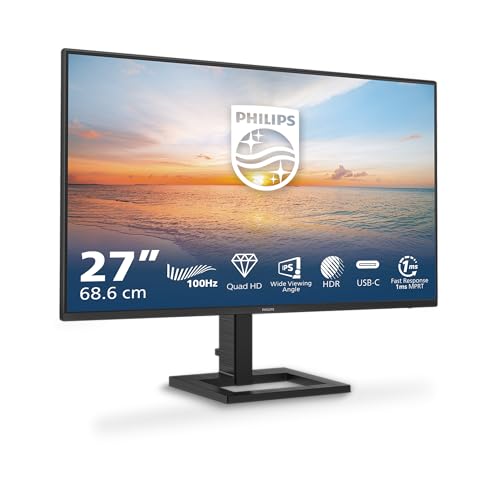
Philips 27" QHD USB-C
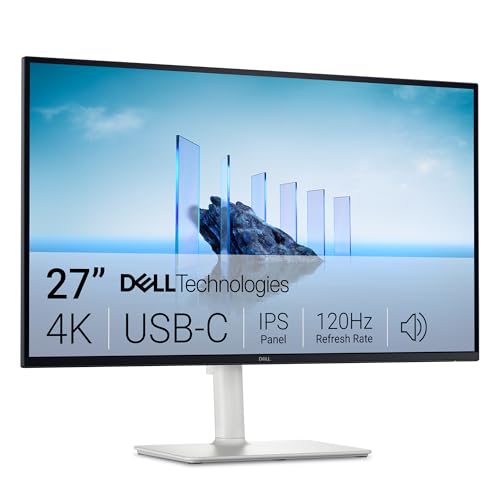
Dell S2725QC 4K
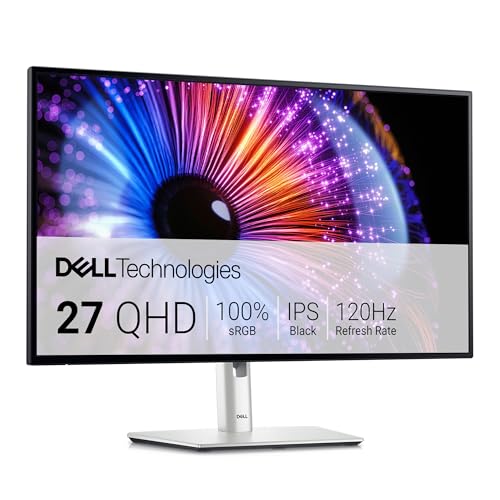
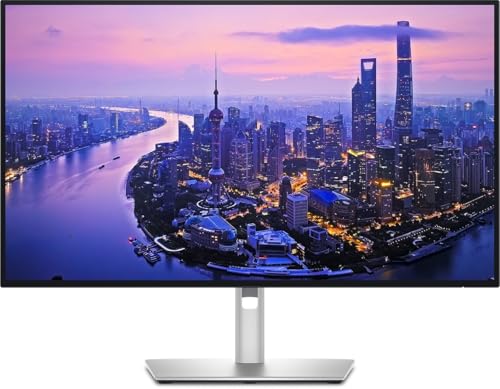
Dell UltraSharp U2724DE
The best monitor for programming in 2026 is the Philips 27" QHD USB-Csee ›, because at 27 inches QHD lands on 109 pixels per inch: sharp text with the desktop scaling left where the manufacturer set it. Go 4K only if you accept running at 150%, and then the Dell S2725QCsee ›. If you want the screen to replace your dock, the UltraSharp U2724DEsee ›. What decides this purchase is pixel density and how the screen is powered, not refresh rate.
- Pixel density decides this, not refresh rate. 27 inches at QHD is 109 PPI, sharp with the scaling untouched. 27 inches at 4K is 163 PPI, close to print, but you will be running the desktop at 150%.
- USB-C with enough watts is the spec that changes your desk, because one cable then carries power, video and the peripherals. The number to check is the wattage, and it is the one manufacturers bury.
- Ergonomics are not a luxury: height, and above all the pivot to portrait, which is the single cheapest way to see more lines of code at once.
- Do not pay for gaming numbers. 144 Hz, 240 Hz, curve and entry-level HDR do nothing for text. That money buys resolution or a proper hub instead.
- Every monitor sold here publishes one comparable figure and no buying guide uses it: its energy class, on the A to G scale, which the listing is legally required to show you. The section below explains what it does and does not tell you.
- A monitor is a seven-year purchase, and the law now says so. The UK ecodesign rules set a minimum spare-parts period for the exact component that fails first. Worth knowing before you buy from a brand with no repair channel here.
Screen space is throughput. More pixels mean more visible lines, and the editor next to the documentation next to a terminal without any of them fighting for room. But choosing a monitor for programming is not about buying the dearest panel or the one with the biggest refresh figure. It is about one number the listings rarely put in the headline, and about how the screen gets its power. We picked eight against the criteria we apply when we specify a development desk, and the first section is the check to do before you look at any of them.
Will the text be readable? The pixel density check
The number that decides whether a monitor is good for code is PPI, pixels per inch: the higher it is, the finer the text. The comfortable landing spot is 27 inches at QHD, which is 109 PPI and needs no scaling at all. 27 inches at 4K is 163 PPI, visibly closer to print, but the desktop has to run at 150% or the interface comes out too small to hit. Work out yours before you look at a single product:
The arithmetic is the diagonal pixel count divided by the diagonal in inches, and it is the same on every desk in every country, which is why we would rather give you the calculator than a verdict. What the number means in practice: below about 90 PPI you can see the pixel grid in a monospaced font at a normal desk distance, and long sessions get tiring. Between roughly 100 and 120 you are in the comfortable band, where the operating system's default 100% scaling is correct and nothing in your toolchain has to be told about it. Above 150 the text is genuinely better and the price is that everything in the interface is drawn at 150% or 200%, which is fine on modern Windows and macOS and still occasionally awkward in older desktop Linux toolkits and in a few Java-based tools.
And this is where the 27 against 32 inch question actually gets answered, because it is a density question wearing a size costume. A 32-inch panel at QHD drops to about 92 PPI, which is coarser text than the 27-inch QHD everyone is comparing it to; the same 32 inches at 4K comes back up to about 138 PPI. So 32 inches is only an upgrade if it is 4K and if you sit slightly further back. For most desks the answer stays 27, and the extra money goes into the resolution rather than the diagonal.
Philips 27" QHD USB-C (27E1N1600AM)

The landing spot for writing code. QHD at 27 inches gives 109 PPI, which means sharp text without touching the system scaling and without discovering afterwards that one of your tools renders badly at 150%. The clever part is the USB-C carrying 65 W: the laptop connects with one cable that charges it, carries the picture and feeds the monitor's own USB ports. Height adjustment and a hub at this level of the market is not the norm.
We score for writing code, not for gaming: pixel density, which we calculate ourselves for every size and resolution combination on this page; USB-C connectivity and its charging wattage; ergonomics, meaning height and pivot; panel behaviour with text; and eye comfort features the manufacturer declares.
How we know: what we did was read every manufacturer spec sheet, calculate the density figures, and check the UK product regulations that apply to all of them. The m8d score and the PPI are our own calculation, with the method in the open.
The one comparable number on every listing: the energy label
Every monitor sold in Great Britain carries an energy label on an A to G scale and a product information sheet, and an online listing is legally required to show you the class and the range of classes available before you buy. It is the only figure on this page that every manufacturer has to publish, measured the same way, and no buying guide uses it.
The rules are the Ecodesign for Energy-Related Products and Energy Information Regulations 2021 and the energy labelling regulation retained alongside them, whose scope article covers "electronic displays, including televisions, monitors and digital signage displays" by name. The government's own guidance for dealers is blunt about what that means on a web page: "an arrow with the energy efficiency class and the range of energy efficiency classes must be provided alongside the product, and this must link to the full energy label for the product". The Office for Product Safety and Standards enforces it against suppliers; local authorities enforce it against the shops.
What it does tell you
- The same test, every model. The class comes from an energy efficiency index measured to one method, so two 27-inch screens are comparable in a way their marketing copy never is.
- How hard the backlight is working. Two panels with identical resolution and size and different classes are not running the same backlight, and that is a thing you sit in front of.
- That the seller is following the rules. A listing with no class and no range is not complying, which tells you something about the seller before it tells you anything about the screen.
What it does not tell you
- Nothing about text quality. The class is about watts, not pixels. A G-class 4K screen still has more pixels than an A-class 1080p one.
- Nothing about your actual bill, because it is measured at a defined brightness and you will not be running that brightness.
- Nothing about the HDR mode, which is measured separately and is where the consumption of a cheap HDR panel actually goes.
There is one more clause worth knowing, because it is unusually direct. Regulation 44 of the same instrument prohibits software designed to detect that the product is being tested and change its behaviour, and says consumption must not get worse after a firmware update without the user's consent. Regulations consulted on 1 September 2026. And a screen that goes for a class it cannot honestly reach is exactly the sort of thing that clause exists for, which is why we would rather point you at the label than at a marketing figure. If sharpness is what you are buying, the Dell S2725QCsee › is still the pick; the label just tells you what it costs to leave on.
The eight compared, with the density figure nobody prints
The column that decides this purchase and that no listing carries: PPI, pixels per inch, which we calculate for each size and resolution combination. Tap a name or a button to go to the product.
| Monitor | m8d | Resolution | Size | PPI | USB-C | Best for | |
|---|---|---|---|---|---|---|---|
| Philips 27" QHDsee › | 9.0 | QHD | 27" | 109 | 65 W | Most people | See it › |
| Dell S2725QCsee › | 8.8 | 4K | 27" | 163 | Yes | Sharpest text | See it › |
| Dell UltraSharp U2724DEsee › | 9.2 | QHD | 27" | 109 | Thunderbolt | Replacing a dock | See it › |
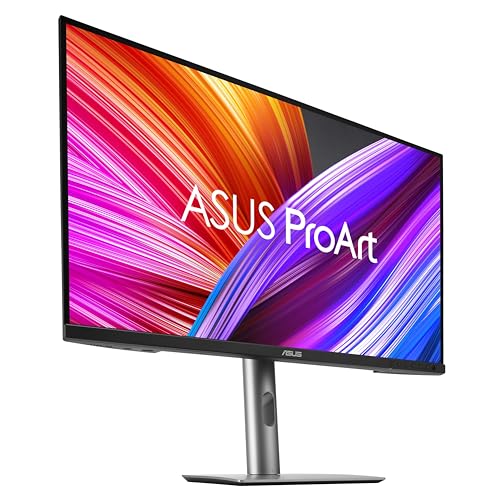
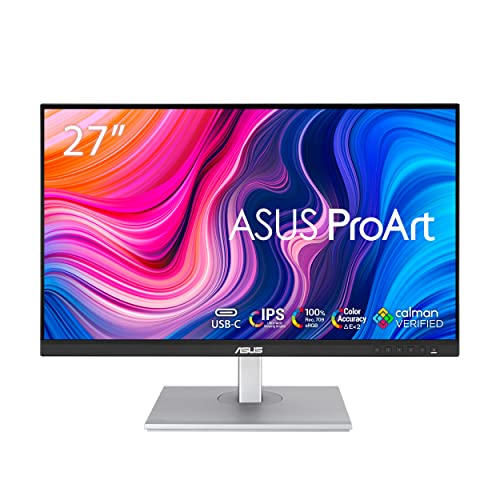
| ASUS ProArt PA279CRVsee › | 8.6 | 4K | 27" | 163 | 96 W | A hungry laptop | See it › |
| Dell UltraSharp U2725QEsee › | 8.7 | 4K | 27" | 163 | Thunderbolt | Both at once | See it › |
| Philips 34" Ultrawidesee › | 8.3 | UWQHD | 34" | 110 | Yes | Three columns | See it › |
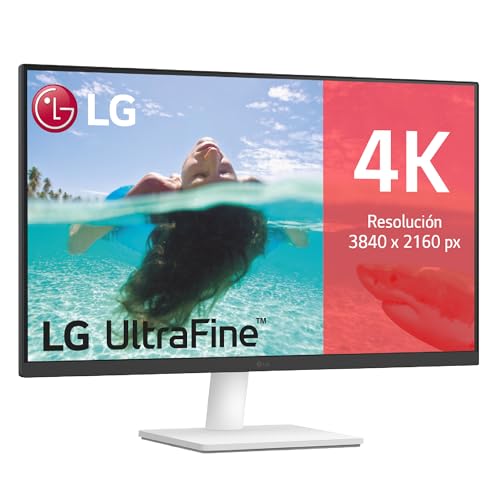
| LG 27US500-Wsee › | 8.0 | 4K | 27" | 163 | No | A tower, no USB-C | See it › |
| ASUS ProArt PA278CVsee › | 8.5 | QHD 16:10 | 27" | 117 | Yes | The 16:10 shape | See it › |
PPI calculated by m8d for each size and resolution pairing. The last two rows are ordered last on purpose: both are stock-dependent in the catalogue we track, so treat them as options rather than as the recommendation. As an Amazon Associate, m8d.io earns from qualifying purchases.
Is 4K or QHD better for programming?
QHD at 27 inches is the easier and cheaper answer: 109 PPI, sharp text, nothing to configure. 4K at 27 inches is genuinely finer at 163 PPI, but it obliges you to run the desktop at 150%, and that is a decision about your whole toolchain rather than about the screen. If you want to plug in and forget, take QHD (Philips 27"see ›). If you want the finest text and you do not mind configuring, take 4K (Dell S2725QCsee ›).
The best monitor with one USB-C cable
If you work from a laptop, USB-C with Power Delivery is the biggest quality-of-life change available: one cable charges the machine, carries the picture and connects the peripherals. The Dell U2724DEsee › is the most complete, because Thunderbolt plus a wired network socket means the screen is also the dock; the Philipssee › is the cheapest one here that does it properly. What separates them is the wattage, and the section below turns that into an answer for your specific laptop. If the laptop is a 90 W class machine, you want the ProArt PA279CRVsee ›.
Is an OLED monitor a good idea for code?
OLED gives perfect blacks and beautiful text, and it has one specific problem for this job: the parts of a developer's screen that never move. Menu bar, status bar, terminal chrome, line numbers, the same file tree in the same place for thousands of hours. That static content is precisely the load case for image retention, and no amount of pixel-shifting entirely removes it. If you write code all day, a good IPS or IPS Black panel is the safer long purchase. OLED makes sense when the same screen is also what you watch films on.
Dell UltraSharp U2724DE
The descendant of the office UltraSharp, and the best productivity screen here if the budget reaches. Its IPS Black panel roughly doubles the contrast of a normal IPS, which shows up on a dark editor theme as text that separates from the background instead of sitting in it. And as a Thunderbolt hub with an RJ45 socket it turns the desk into a dock: one cable and the laptop has power, a wired network and every peripheral.
Which one will actually charge your laptop?
This is where people get caught. A monitor that lists USB-C does not necessarily charge what you plug into it, and even when it does the wattage may be below what your machine draws under a build. Two things have to be true: the laptop's port must carry video, and the monitor's Power Delivery wattage must match the charger the laptop came with. Tell us what you are connecting.
Still choosing the laptop? Pick that first with our guide to the best laptop for programming, then come back for the screen whose wattage matches it. And if the desk also needs ports, the USB-C hub guide covers the case where the monitor is not the dock.
The refresh-rate myth: what not to pay for
The commonest mistake when buying a screen "for programming" is being sold gaming numbers. A 240 Hz panel with a 1 ms response is a fine thing and completely irrelevant to writing code, because text does not move. Here is the split, and it is the reason a cheaper screen often beats a dearer one for this job:
Pay for this
- Pixel density: 27 inches at QHD or 4K.
- USB-C with enough watts: one cable to the laptop.
- Ergonomics: height, and the pivot to portrait.
- An IPS panel with sRGB coverage the maker states.
- Low blue light and flicker-free for long sessions.
Do not pay for this
- 144, 165 or 240 Hz: 60 to 75 is plenty for text.
- 1 ms response: meaningless without a game.
- Curve: a look, not a productivity feature at 27".
- Entry-level HDR: does nothing for a text editor.
- G-Sync or FreeSync: built for frame rates.
The practical translation: for what a 240 Hz gaming panel costs you can have a Thunderbolt UltraSharpsee › that removes three cables from your desk every morning.
How long it stays repairable, and why that is a spec
A monitor outlives two or three of the laptops that get plugged into it, and the UK ecodesign rules put a floor under that: spare parts have to stay available for a minimum of seven years after the last unit of the model is placed on the market. The list of parts is specific, and it names the component that actually fails.
Schedule 19 of the same 2021 regulations sets out what a manufacturer has to keep in stock for professional repairers for at least seven years after the model stops being sold: the internal power supply, the connectors for external equipment, "capacitors above 400 microfarads", and any batteries. For end users directly, the external power supply and the remote control, again seven years. And the parts have to be replaceable "with the use of commonly available tools and without permanent damage to the appliance", which rules out the glued-shut approach.
Paragraphs 15 to 19 of Schedule 19 to the Ecodesign for Energy-Related Products and Energy Information Regulations 2021 (SI 2021/745), consulted on 1 September 2026. We do not claim one manufacturer's repair channel is better than another: what we are pointing at is the obligation, which applies to all of them equally. It is worth weighing alongside the panel: the UltraSharpsee › and the LGsee › are both covered by it, and both come from manufacturers with a service presence here.
One screen, two, or an ultrawide?
For most people one good 27-inch screen is the balance, because the editor and the documentation sit side by side with no bezel down the middle. Two screens separate tasks properly, at the cost of that bezel. A 34-inch ultrawide gives you one continuous surface that splits cleanly into three columns. If you are unsure, buy one good screen and add the second later, which is also the cheaper order to do it in.
And the detail that matters more than the count: the pivot to portrait. Turning a screen ninety degrees puts far more lines in front of you at once, and a common two-screen desk is one landscape panel for the editor and one portrait for logs, documentation or a diff. Check the listing for it, because plenty of screens tilt and do not rotate. If you go the ultrawide route, the Philips 34" with USB-Csee › is the sensible one, at 110 PPI, which is the same comfortable band as a 27-inch QHD.
The specs, in plain English
Questions about monitors for programming

m8d.io
We analyse consumer technology by contrasting what a spec sheet promises with what can be verified, and we publish the method. The same criterion we apply on client work applies here: which specifications actually matter for writing code, and which are marketing. No manufacturer pays to appear or to rank first, purchase links are affiliate links and are disclosed on every block, and corrections are published with their date.
Best laptop for programming
The machine that plugs into this screen, and the port that decides whether one cable is enough.
Best keyboard for programming
Where an ISO-UK layout puts the braces and the hash, and why that is a first-order spec.
Best 27-inch monitor
The same size chosen by size rather than by job, covering film and gaming as well as work.