Best 27-inch monitors in 2026: value picks for gaming, 4K and office, with USB-C wattage explained
 m8d.ioUpdated on
This guide contains affiliate links. As an Amazon Associate, m8d.io earns from qualifying purchases, at no extra cost to you.

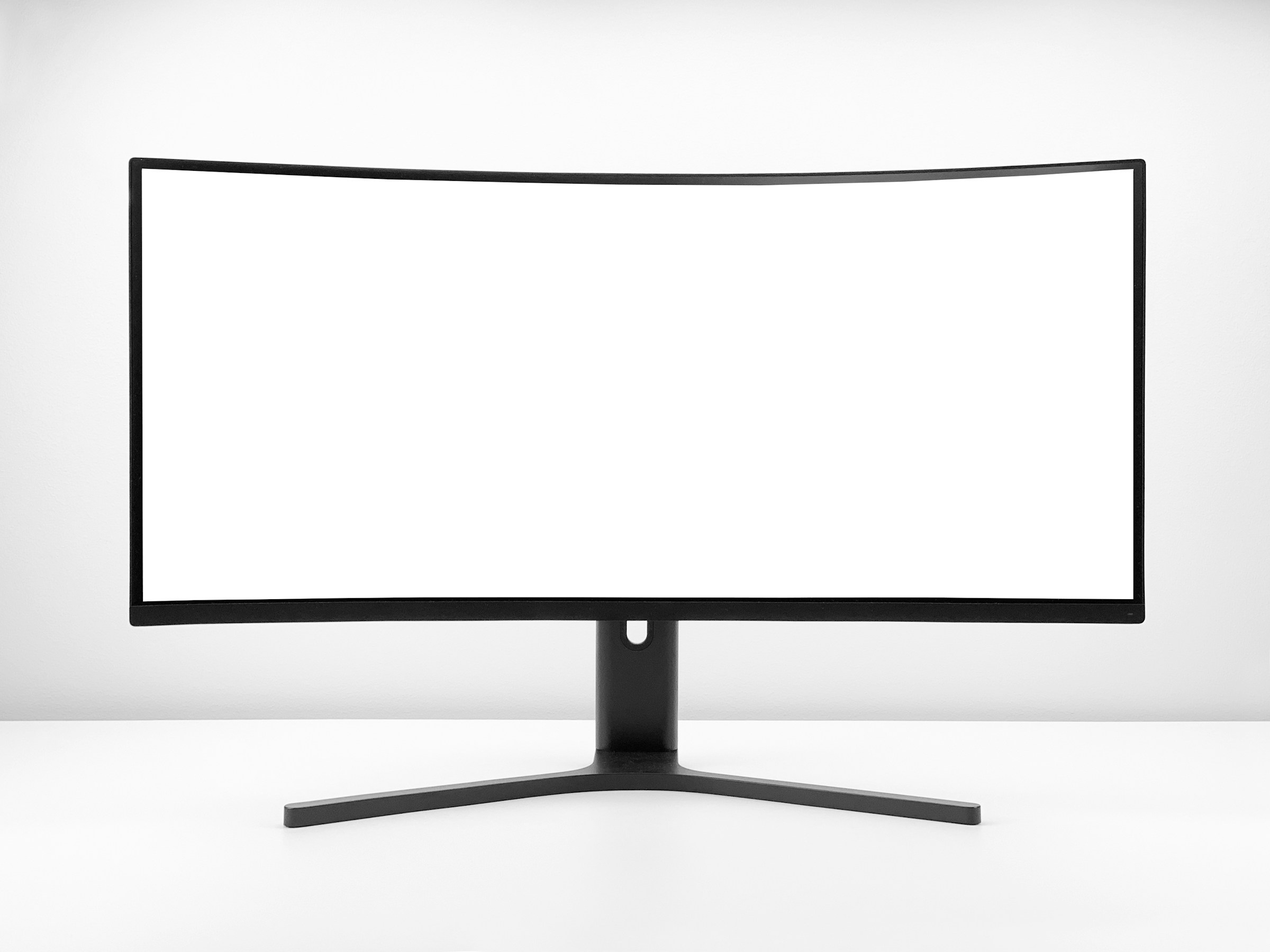
The best value 27-inch monitor of 2026 is the AOC Q27G4XF: QHD at 180 Hz with a height-adjustable stand, at a budget price. At this size the minimum sensible resolution is 1440p, and there is one rule to apply before comparing anything: if a monitor advertises USB-C without stating the watts, assume it will not charge your laptop.
1080p, 1440p or 4K on a 27-inch monitor
Sharpness does not come from resolution alone: it comes from resolution spread across the inches. The math is a division anyone can repeat: 1080p on 27 inches works out to 82 pixels per inch, 1440p to 109, and 4K to 163. Translated into what you will actually see: at 82 PPI text looks grainy at desk distance, at 109 text is sharp and a mid-range graphics card can still drive games comfortably, and at 163 letters look printed, at the cost that gaming at that resolution demands an expensive GPU. That is why the short answer of this guide is 1440p, with 4K reserved for people who work with photo, video or fine text for hours.
The honest word on the cheapest tier: the lowest-priced 27-inch monitors that come up in any search are 1080p panels. As a secondary support screen they are fine; as your main screen, at this size, they look grainy up close and this guide does not recommend them.
The 7 best 27-inch monitors at a glance
| Monitor | Panel | Resolution | Refresh rate | Who it is for | |
|---|---|---|---|---|---|
| AOC Q27G4XF view › | IPS | QHD 1440p | 180 Hz | Most people: work and play without overpaying | View › |
 Gigabyte G27Q20 view › Gigabyte G27Q20 view › | SS IPS | QHD 1440p | 200 Hz | Fast gaming with an adjustable stand | View › |
 LG UltraGear 27GS60QC-B view › LG UltraGear 27GS60QC-B view › | VA curved 1000R | QHD 1440p | 180 Hz | 3000:1 contrast for dark-room gaming and movies | View › |
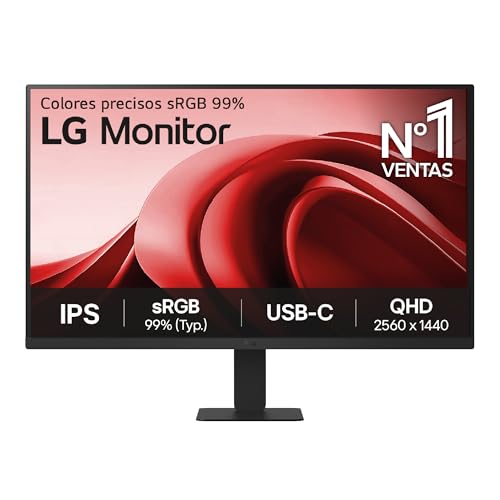 LG 27U631A-B view › LG 27U631A-B view › | IPS | QHD 1440p | 100 Hz | Office work over USB-C, with the wattage catch | View › |
 LG UltraFine 27US500-W view › LG UltraFine 27US500-W view › | IPS | 4K UHD | 60 Hz | Photo, video and fine text: 163 pixels per inch | View › |
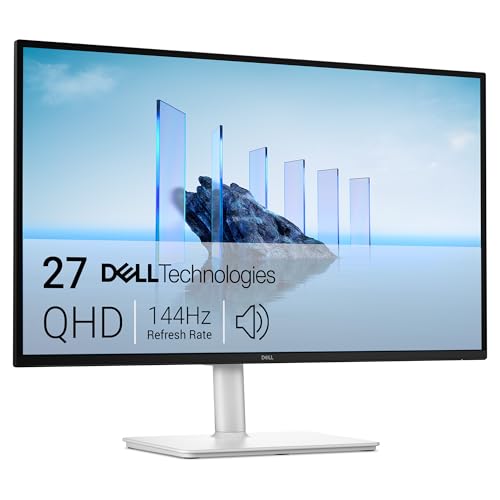 Dell 27 Plus S2725DSM view › Dell 27 Plus S2725DSM view › | IPS | QHD 1440p | 144 Hz | The big-brand all-rounder for work and play | View › |
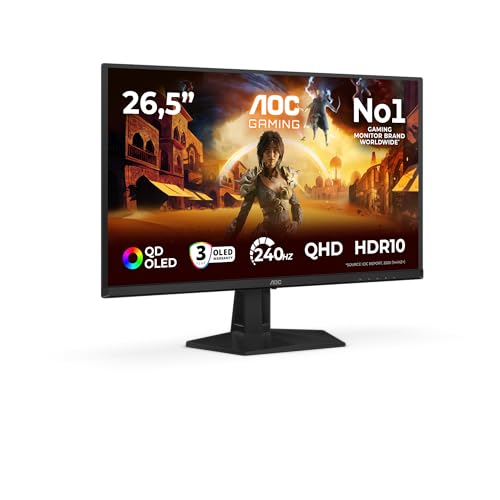 AOC Q27G41ZDF view › AOC Q27G41ZDF view › | QD-OLED | QHD 1440p | 240 Hz | The upgrade you can see: true black and 0.03 ms | View › |
Panel, resolution and refresh rate are what each manufacturer publishes on its official spec sheet or store listing, checked on 18 August 2026. Use the buttons to check availability and current pricing in your local Amazon store.
Which 27-inch monitor to buy for your use case
QHD at 180 Hz with a height-adjustable stand at a budget price: sharp text for work and speed for games, without paying for what you will not use.
See it on Amazon ›The USB-C trap: the watts the listing does not highlight
The pitch of the modern office monitor is the single cable: the laptop connects over USB-C and that one cable carries both the image and the charge. The catch is in the watts, and no theory is needed: the official spec sheet of the LG 27U631A-B in this guide declares USB-C with 15 watts of charging. A work laptop needs between 45 and 65, and a high-end one more: at 15 watts your laptop still drains while you work, just more slowly. The monitor remains a good buy, which is why it is on the list: what does not hold up is the single-cable promise, and the honest thing is to say so in the product card instead of burying it.
"USB-C" and "a single cable" as the selling point of office monitors, with the word watts absent from the headline and from half the store listings.
LG's official spec sheet for the 27U631A-B declares USB-C with 15 watts of charging. A work laptop needs 45 to 65: the image travels down the cable, real charging does not. The figure is published by the manufacturer itself and linked in the sources below.
m8d rule: If a monitor advertises USB-C without stating the watts, assume it will not charge your laptop: true single-cable monitors declare 65 watts or more, and this one declares 15.
The check takes ten seconds in any store: look for the word watts or the initials PD next to USB-C in the listing. If the figure is not there, you already have your answer.
Refresh rates and panels in 2026: what actually separates tiers
Three years ago, 200 Hz was a high-end selling point. Today the Gigabyte in this guide delivers it for barely more than the main pick. The translation matters: the hertz on the label only turn into smoothness if your graphics card produces that many frames per second in your games; with a mid-range card hovering around 100, a 180 Hz monitor and a 240 Hz monitor look the same. What separates tiers in 2026 is the panel: the QD-OLED on this list declares 0.03 milliseconds of response time against the 0.5 of the fast IPS panels, and its black is the absence of light, not dark gray. That difference you can see the moment you switch it on, and it is why it costs roughly twice as much. And if the machine behind the monitor is also going to run AI models locally, be aware that the card in it is chosen on a completely different specification, video memory rather than frames, which is what the best GPU for local AI guide is about.
The catalog leaves another contrast on the same day: LG itself sells its 60 Hz 4K model for more than its 100 Hz QHD model with USB-C. More expensive does not mean faster: at 27 inches, resolution and refresh rate are bought separately, and it pays to decide first which of the two you care about.
The 7 monitors, one by one
AOC Q27G4XF view ›
It is the short answer of this guide: QHD at 180 Hz with a height-adjustable stand, at a price almost nothing in this tier matches. Translated: sharp text for work, more than enough fluidity for gaming on a mid-range graphics card, and a correct sitting posture without buying a monitor arm. It has no USB-C and no real HDR ambitions, and at this level it does not need them.
- Its spec sheet declares QHD at 180 Hz with 0.5 milliseconds and FreeSync Premium: the entire useful gaming band of this tier, without paying the premium for 240 Hz that a mid-range graphics card will never produce.
- The height-adjustable stand is the practical difference against almost everything at this price: cheap monitors only tilt, and eight hours in front of a screen that sits too low is something your neck registers.
- The HDR10 on the box means it understands the signal, not that it displays it: without local dimming the image does not change. We say it because this label's trap is explained two sections up and this model is no exception.
- QHD at 180 Hz at the best figure-per-money ratio on the list
- Height-adjustable stand, rare in this tier
- FreeSync Premium and a declared 0.5 ms for tear-free gaming
- No USB-C: this is not the work-laptop monitor
- The HDR10 on the box is compatibility, not visible HDR
Gigabyte G27Q20 view ›
It takes the gaming slot the LG 27GS75Q left vacant, and improves on the figure that matters: 200 Hz native, declared by Gigabyte, for barely more than the main pick. Translated: if your graphics card pushes past 144 frames per second in your games, motion looks cleaner than on the AOC; if it does not get there, save the difference. The stand adjusts in height and tilt, and the 94% DCI-P3 on its spec sheet is more color than this tier used to buy.
- The manufacturer's spec sheet declares 200 Hz native with an overclock to 210 and 0.5 milliseconds GtG on an SS IPS panel: three years ago this spec sheet belonged to the high end, and that is the second contrast of this guide.
- Gigabyte publishes 94% DCI-P3 coverage: more than enough color for games and video to look as designed. For professional color work, calibration still rules, and no monitor in this tier ships calibrated.
- Compatible with FreeSync Premium and G-Sync according to its sheet: the graphics card and the monitor run at the same pace and motion does not tear, whether you run AMD or Nvidia.
- 200 Hz native declared by the manufacturer, with overclock to 210
- 94% DCI-P3 on its spec sheet: more color than usual at this level
- FreeSync Premium and G-Sync compatible, for AMD and Nvidia
- Slightly above the main pick for hertz you only see with a powerful graphics card
- A brand with a thinner support network in monitors than LG or Dell
Why the LG UltraGear 27GS75Q is no longer here: it held the gaming slot of this guide and the catalog we track lists it as unavailable since mid August 2026. Its place goes to the Gigabyte above, with 200 Hz declared on the manufacturer's spec sheet for less than the LG used to cost.
LG UltraGear 27GS60QC-B view ›
The one you buy for the contrast: its VA panel declares 3000:1, three times a typical IPS, and that translates into blacks that do not wash out when gaming in the dark or watching movies. The 1000R curve on a 27-inch 16:9 screen is personal taste, not a measurable advantage, and we say so even though the manufacturer sells it as immersion. At 180 Hz and 1 millisecond, it games just as well as the flat panels.
- LG declares 3000:1 contrast on its spec sheet: that is the figure that separates a VA from an IPS, and the real reason to choose this model if you game with the lights off.
- The 1000R curve at this size does not change what you see: the screen is too narrow. It is explained in the questions below, and this model earns its place through contrast and price, not through the curve.
- VA viewing angles are narrower than IPS: perfect head-on, worse from the couch next to you. If you often share the screen, look at the IPS models on this same list.
- Declared 3000:1 contrast: blacks an IPS cannot give you
- 180 Hz and 1 ms for gaming without a premium
- Contained price for an UltraGear
- VA viewing angles lose color off the front axis
- The 1000R curve adds nothing measurable at 27 inches
LG 27U631A-B view ›
The office buy of this guide, and the spec sheet its rule comes from. One USB-C cable carries the laptop's image to the monitor, 100 Hz smooth out even text scrolling, and the declared 99% sRGB keeps color where it should be. The catch its marketing does not highlight: the 15 watts of charging on its own spec sheet will not charge a work laptop, so the charger stays on the desk. Knowing that, it is hard to beat for remote work.
- LG's official spec sheet declares USB-C with 15 watts: the image travels down one cable, real charging does not. A work laptop needs 45 to 65 watts, and that difference is the quotable rule of this guide.
- Its 100 Hz is the small luxury of remote work: text scrolls smoothly and your eyes notice it by hour eight. It also handles casual gaming, without being a gaming monitor.
- LG declares 99% sRGB with factory calibration: correct color for documents, web and consumer photo work. For print or professional video, the 4K below with a calibrated profile remains the better destination.
- USB-C carries the laptop's image over a single cable
- 100 Hz that smooth the desktop, rare in an office monitor
- Declared 99% sRGB with factory calibration
- Its 15 watts of charging will not charge a work laptop: the charger stays
- Not a gaming monitor, and its spec sheet does not pretend otherwise
LG UltraFine 27US500-W view ›
The affordable 4K of the list: 163 pixels per inch that turn text into print and let you inspect a photo in detail without zooming. Its 60 Hz takes it out of the gaming conversation, and that is fine: that is not its job. It is the buy for whoever edits photos, does layout work or reads fine text for hours; for everything else, the 100 Hz QHD above is the better office.
- 4K at 27 inches is 163 pixels per inch, the tallest bar in the chart above: sharpness is this monitor's entire argument, and it is real.
- The operating system scales the interface to 150% at this density: everything appears the same size as on a QHD screen, but drawn with twice the detail. That is the expected behavior, not a defect.
- Its 60 Hz is the price of affordable 4K: fine for desktop work, short for gaming. LG's own catalog sells more hertz for less money in QHD, and that contrast is covered above.
- 163 pixels per inch: the sharpest text on the list
- IPS with HDR10 among the most affordable 4K panels we tracked
- Ideal for photo, layout and long reading
- 60 Hz: out of the gaming conversation
- No USB-C and no height adjustment: the stand only tilts
Dell 27 Plus S2725DSM view ›
This Dell's argument is not one figure: it is the whole package. QHD, IPS, 144 Hz, full ergonomics and Dell's after-sales support, which in monitors is among those that actually answer. Translated: it is the one you buy to stop thinking, and you pay for that: it costs notably more than the main pick with a similar spec sheet. If budget rules, the AOC does the same job; if peace of mind rules, this one.
- Its 144 Hz covers real mixed use: work on weekdays, games on the weekend, without being the fastest monitor on the list or pretending to be.
- The sheet declares 1 millisecond MPRT, a different metric from the GtG the others use: manufacturers pick whichever figure flatters them, and comparing milliseconds across brands is comparing different rulers. We mention it because it is a common spec-sheet trap.
- Full ergonomics and finish are the silent argument: height, swivel and tilt as standard, and a design that does not look like gaming gear. On a work desk that counts for more than it sounds.
- Complete balance: QHD, IPS, 144 Hz and ergonomics as standard
- Dell's after-sales support, among the responsive ones in monitors
- Sober design that fits a work desk
- Notably above the main pick with similar figures
- The 1 ms MPRT on its sheet is not comparable with the others' GtG
AOC Q27G41ZDF view ›
The only step up on this list you can see the moment you turn the monitor on. QD-OLED switches each pixel truly off: black is the absence of light, not dark gray, and the declared 0.03 milliseconds leave no trail behind motion. At 240 Hz, it is the monitor for whoever games seriously and has the graphics card to feed it. The two pieces of OLED small print are in the observations, because buying it without knowing them is buying half the story.
- AOC declares 0.03 milliseconds GtG: sixteen times faster than the 0.5 of the IPS panels on this list. It is the figure behind the feeling that motion on an OLED looks clean.
- QD-OLED shares the two cautions of every OLED: the risk of image retention with static interfaces over many hours, which manufacturers mitigate with automatic routines, and lower full-screen brightness than a good LCD. For gaming and video neither gets in the way; for pure office work eight hours a day, there are better options in this same guide.
- Among the QD-OLED 27-inch monitors in the catalog we track, this is one of the most affordable ways into the panel that actually changes what you see.
- QD-OLED with true black: the only difference visible at first glance
- Declared 0.03 ms and 240 Hz, with no trail behind motion
- Among the most affordable 27-inch QD-OLEDs we track
- Risk of image retention with static interfaces over many hours
- Lower full-screen brightness than a good LCD: not for very bright offices
4 traps when buying a 27-inch monitor
Full HD at 27 inches. The cheapest panels that come up when you search this size are 1080p: 82 pixels per inch that look grainy up close. For a main screen at this size, the floor is 1440p.
HDR10 is not HDR. Almost every listing carries it, but HDR10 on its own means the monitor understands the signal, not that it can display it: without high brightness and local dimming, the image does not change. If HDR matters to you, look for a DisplayHDR 400 certification or higher, or go straight to an OLED panel.
Hertz you will never use. 240 or 280 Hz only become visible if your graphics card produces that many frames per second. For work, 75 to 100 is plenty; for gaming, the useful band in this price range is 144 to 200.
The monitor with TV apps. Paying extra because a monitor ships with smart TV apps rarely pays off: that money goes further in panel quality, resolution or a height-adjustable stand.
One last thing that shares the desk and gets decided badly far more often: before you order the keyboard to go with it, read the ten-second photo check in our guide to gaming keyboards and the UK layout, because the wrong Enter key is not something you can fix afterwards. The short checklist before paying: 1440p or more, IPS for general use or VA if you prioritize contrast, refresh rate matched to your real use, USB-C only if you work from a laptop and only after checking the watts, and height adjustment if you will sit in front of it for hours, because many cheap stands only tilt.
Every figure in this guide carries its source and its date. What we did was go through the 27-inch monitor catalog that m8d tracks (Amazon Spain, part of Amazon's shared European catalog) on 18 August 2026, read each manufacturer's official spec sheet, and keep only what can be verified: panel, resolution, declared refresh rate, USB-C wattage. Where a figure does not appear on the spec sheet, the cell says so instead of being filled in. The two contrasts in this piece, the 15 watts of USB-C charging and 200 Hz at a budget price, come from the manufacturers' own spec sheets, linked below with their date of consultation. Model availability varies by country: the buttons take you to your local Amazon store so you can check yours.
24 or 27 inches, which size should I pick?›
27 inches is the desktop sweet spot as long as the resolution is 1440p or more: a real window and a half fit side by side and text stays sharp. If your budget only reaches 1080p, a 24-inch screen will look better, because the same pixels spread over less glass give you more sharpness.
Does 1080p look bad on a 27-inch monitor?›
Up close, yes: it works out to 82 pixels per inch and text looks grainy at desk distance. As a secondary support screen it is tolerable; as your main screen, at this size, start at 1440p.
1440p or 4K at 27 inches?›
For gaming and general use, 1440p: your graphics card can drive it comfortably and at 109 pixels per inch text is sharp. 4K pays off if you work with photo, video or fine text for hours: 163 pixels per inch make letters look printed, at the cost that gaming at 4K demands an expensive GPU.
How many hertz do I actually need?›
For work, 75 to 100: you notice it even when scrolling text. For gaming, 144 to 200. Above 200 there is only a difference if your graphics card produces that many frames per second in your games; if it hovers around 100, a 180 Hz and a 240 Hz monitor look the same.
IPS, VA or OLED at 27 inches?›
IPS for general use: stable color and wide viewing angles. VA if contrast is your priority, for dark-room gaming or movies: the VA in this guide declares 3000:1, three times a typical IPS. OLED or QD-OLED is the real step up, with true black and a declared 0.03 milliseconds, and you pay for it: it is the only difference on this list you can see the moment you turn the monitor on.
Is a curved monitor worth it at 27 inches?›
In 16:9 format at 27 inches the curve is a preference, not a measurable advantage: the screen is too narrow for a 1000R radius to change what you see. Where curvature makes sense is on ultrawide formats from 34 inches up. The curved model in this guide earns its place through its VA contrast, not through the curve.
Do I need a monitor with USB-C?›
Only if you connect a laptop and want one cable for the image. And check the watts before paying for it: the office model in this guide declares 15, which will keep a tablet going but will not charge a work laptop. True single-cable monitors declare 65 watts or more.
The official spec sheets behind the data in this piece, with their date of consultation.
- LG SpainOfficial LG 27U631A-B spec sheetQHD, IPS, 100 Hz, 99% sRGB and USB-C with 15 W of charging. Consulted on 18 August 2026: it is the source of the wattage rule. Spanish-language page.
- GigabyteGigabyte G27Q20 specificationsSS IPS panel, QHD, 200 Hz native, 0.5 ms GtG and 94% DCI-P3. Consulted on 18 August 2026.
- LGOfficial LG UltraGear 27GS60QC-B spec sheetCurved 1000R VA panel, QHD, 180 Hz, 3000:1 contrast. Consulted on 18 August 2026.
- AmazonAmazon product listingsDeclared specifications of the seven monitors, read via API on 18 August 2026 from the European catalog that m8d tracks daily.
The short answer, if you got this far still undecided: almost everyone buys well with the 180 Hz QHD pick, because at 27 inches the balance sits at 1440p and the extra hertz barely cost anything anymore. Pay for 4K only if you work with images or fine text, pay for QD-OLED only if you want the one upgrade you can see the moment you switch it on, and if the selling point is USB-C, find the watts on the spec sheet before paying for the single-cable promise.
Comments
Be the firstNo sign-up: just a name. Every comment is reviewed before it is published.